
JJ Bot is a team of AI agents on your computer. This part shows how to build that team: the lead bot you start with, new bots and teams, and how to hand them work.

Your lead bot, jj
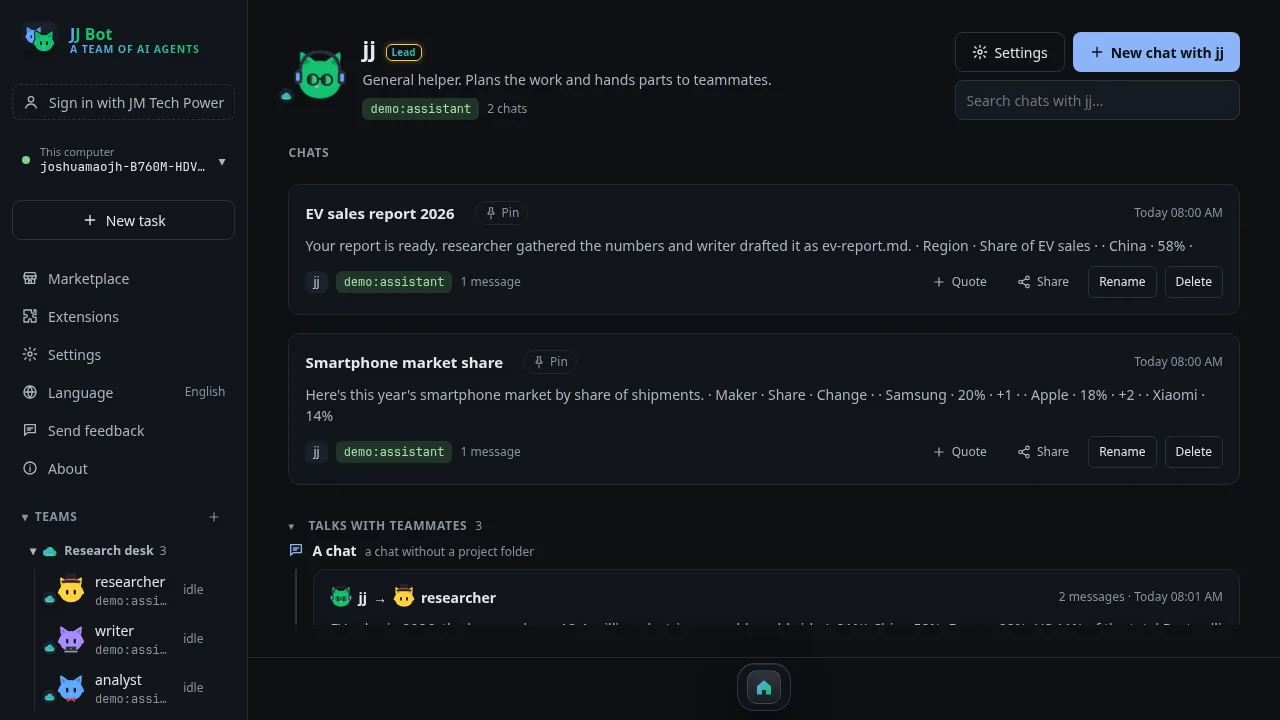
Every user has a lead bot called jj. It is marked Lead and comes first under Teams in the sidebar. You can rename it, but not delete it. The other bots report their finished work to jj, so it knows what was done.
Make a bot
There are three ways:
- Settings → Agents → + Add agent. Give it a name, say what it does, write its instructions, and pick its model, its approvals and its avatar.
- Marketplace → Bots. Find a ready-made bot and click Make this bot.
- Ask a bot. A bot can create teammates for you. You approve each one.
Make a team
Teams are groups of bots in the sidebar.
- Open Marketplace → Teams and click Make this team, or put bots on a new team name.
- Use a bot's ⋯ in the sidebar to move it to a team, pin it or delete it.
- Use a team's ⋯ to rename or delete it. When you delete a team, you choose whether its bots stay, move, or go too.
Where a bot lives
- With your account: the bot syncs to every computer where you sign in to JM Tech Power.
- On this computer only: it stays here.
A team holds only one kind.
Approvals
Each bot has its own setting:
- Ask me: risky steps wait for your OK.
- Allow everything.
- Read only.
Hand work to bots with @
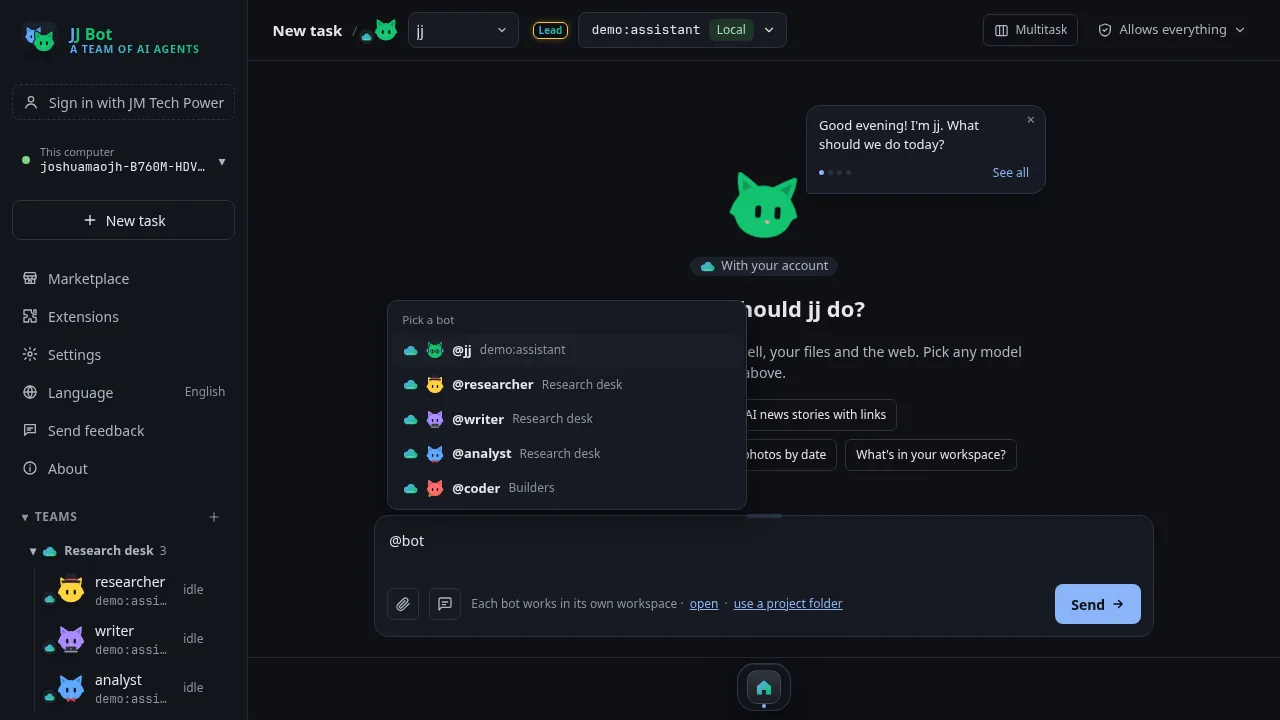
In a message, type @ and pick a team, one bot or several bots. They work at the same time and send their answers back. Bots can also message each other.
Dress up the cats
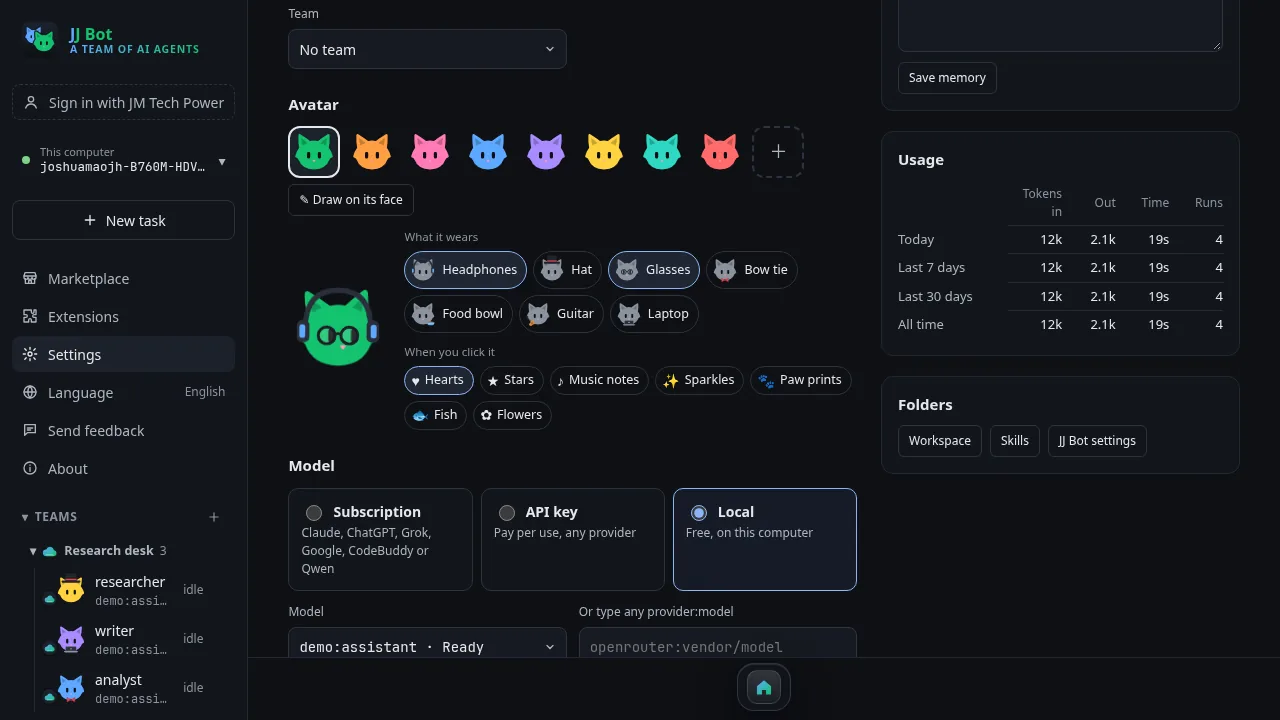
Each bot is a cat. Open Settings → Agents → Avatar to set its colour, what it wears (headphones, a hat, glasses…), what pops out when you click it, and a drawing on its face.
Next: Learn JJ Bot, part 2: install from the Marketplace.
中文版:JJ Bot 入门(一):创建或招募机器人和团队
评论 (0)
请登录后发表评论
登录暂无评论,成为第一个评论者!