
Tutorial · JJ Bot 0.3.100 · 14 November 2026
JJ Bot's News tool puts Google News beside your chat. In 0.3.100, Ask goes one step further: one click sends a story to your bot, which reads the article first, sums it up in a few lines, and then asks what you'd like to do next, with suggestions that fit your usual habits.
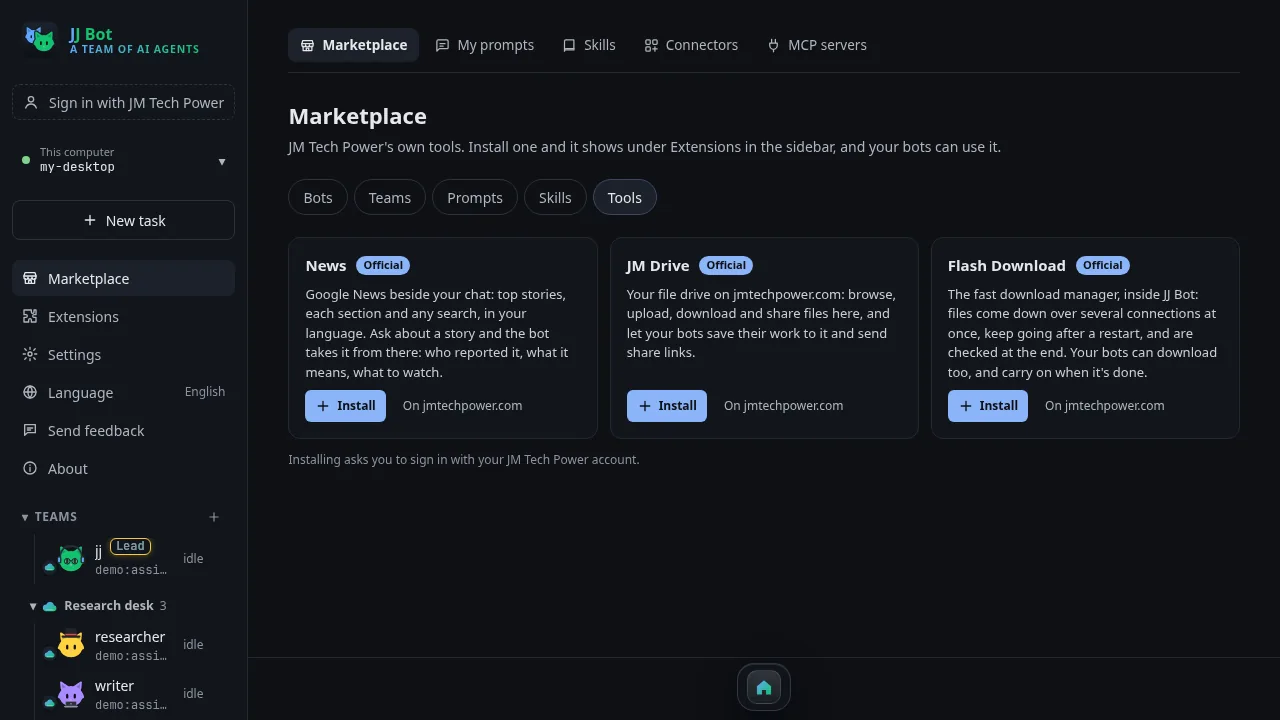
1. Install News
- In the sidebar, open Marketplace and choose the Tools tab.
- Find News and click Install.
2. Open it beside your chat
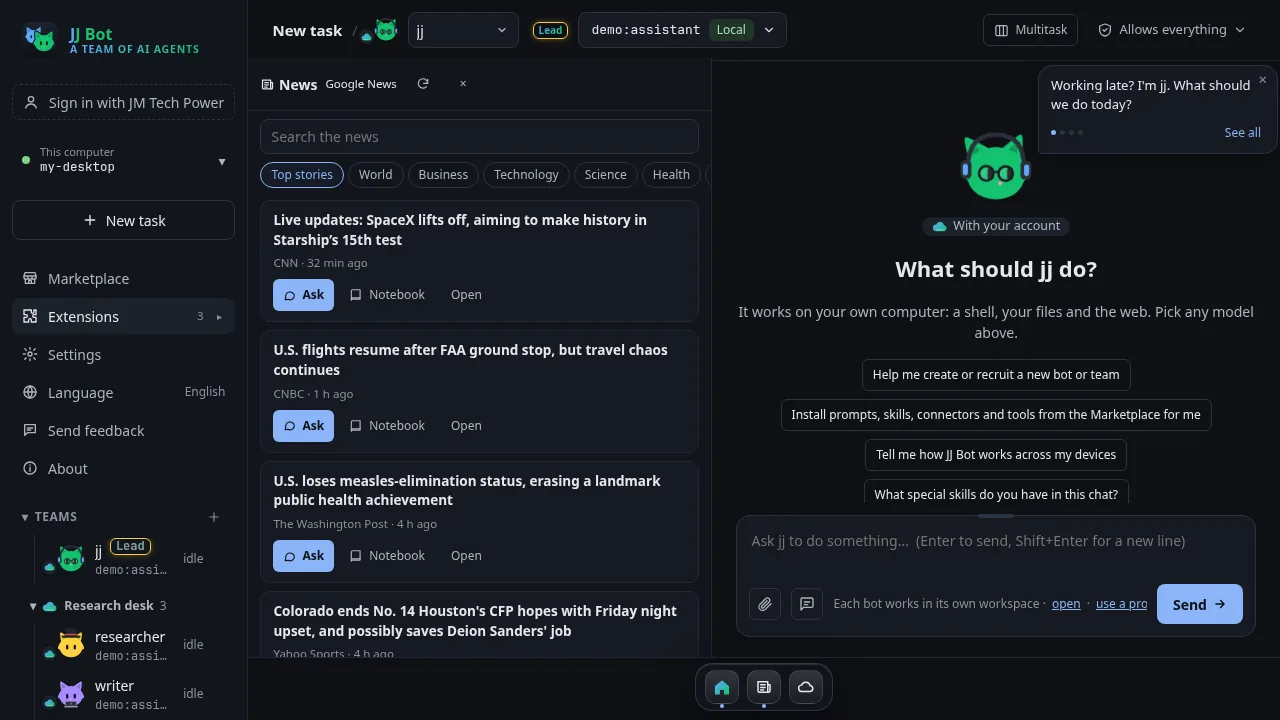
Installed tools show under Extensions in the sidebar and on the dock at the bottom. Open News from the dock: top stories show on the chat's left, in your language. Pick a section (World, Business, Technology…) or search for anything.
3. Read a story right there
Click a headline to read the article in the News pane. Below it are Ask, Notebook (clip it), Open (read it in your browser) and Back (return to the list where you were). Some newspapers don't let JJ Bot read their articles, for example behind a subscription; the pane says so, and Open reads it in your browser.
4. Click Ask
- Click Ask on a story, in the list or while reading it.
- The story goes to the bot at once; you don't need to click Send.
- The bot reads the article first and sums it up in a few lines.
- Then it asks what you'd like to do next, with suggestions that fit your usual habits.
From there, carry on as in any chat: ask for more background, have a teammate look into it, or clip the best parts to your notebook.
New to the Marketplace? See Learn JJ Bot, part 2: install from the Marketplace. Download JJ Bot and see every update on the JJ Bot page.
评论 (0)
请登录后发表评论
登录暂无评论,成为第一个评论者!